Give ChatGPT or Claude live access to your data in under two minutes. Both use the same server URL and subscription key — just pick your client below.
https://mcp.minacle.ai/sql/mcp
Ocp-Apim-Subscription-Key
ChatGPT desktop app — Settings → Plugins → Add MCP server.
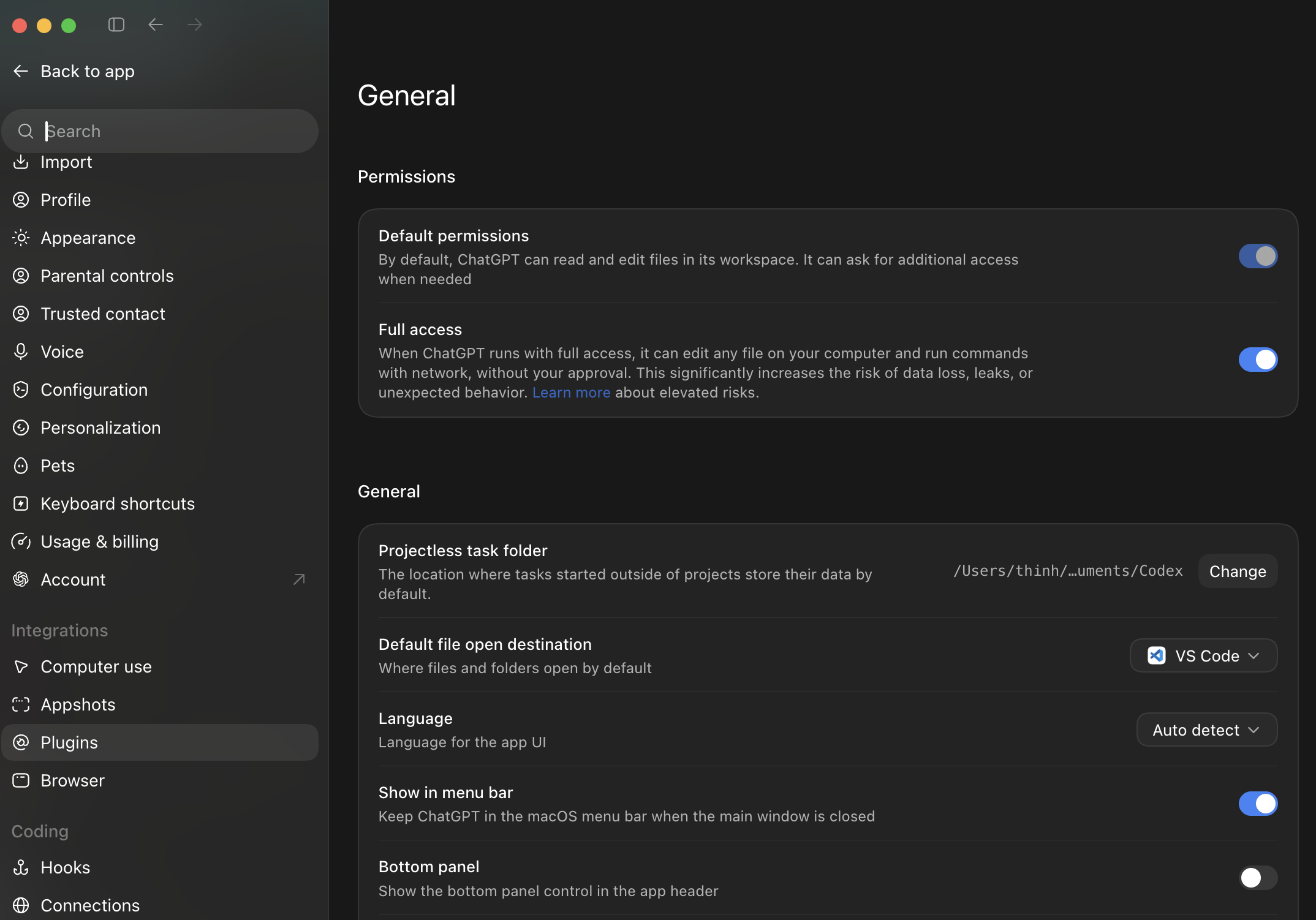
In the ChatGPT desktop app, open Settings from the sidebar, then click Plugins.
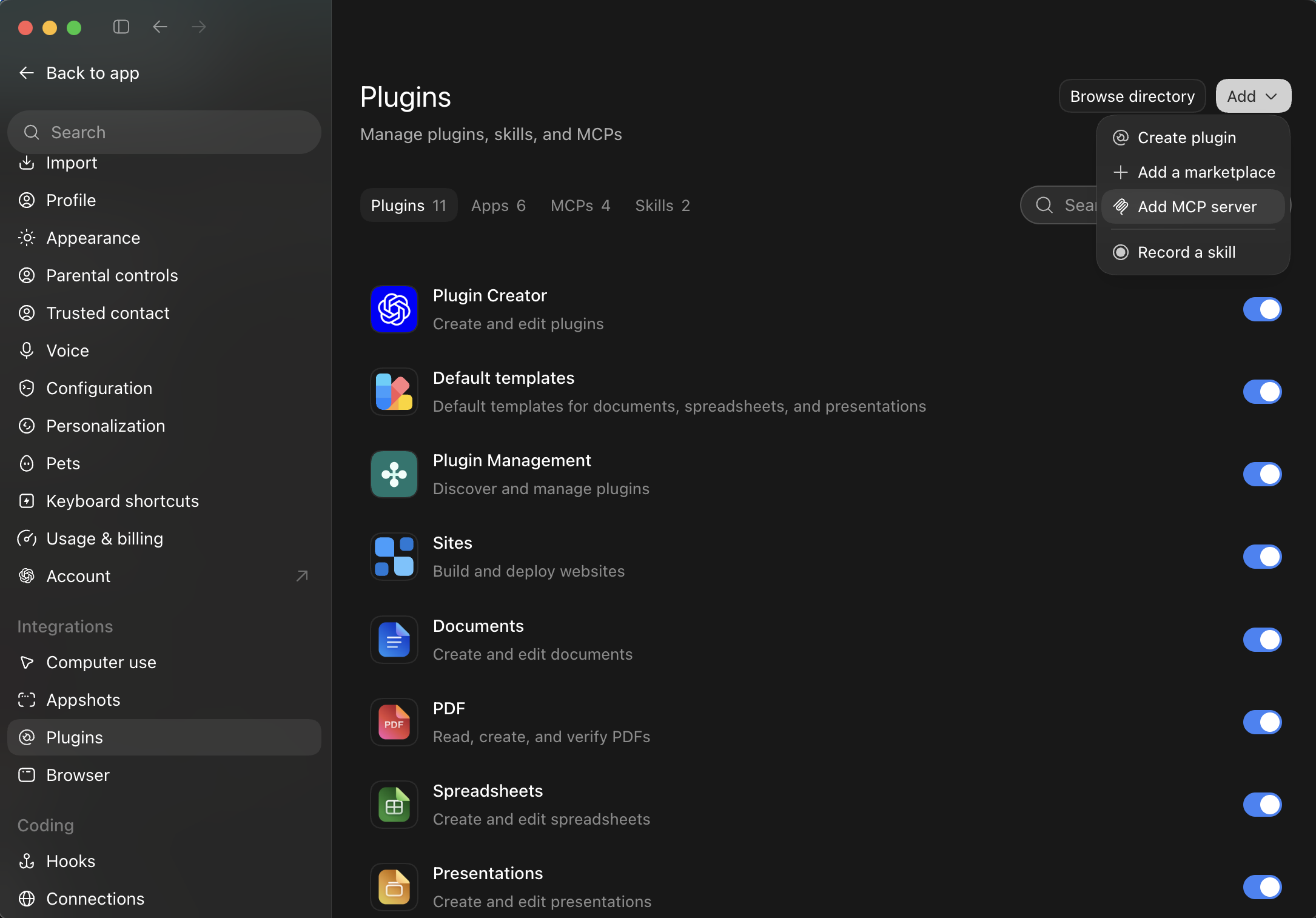
On the Plugins page, click Add in the top right, then choose Add MCP server.
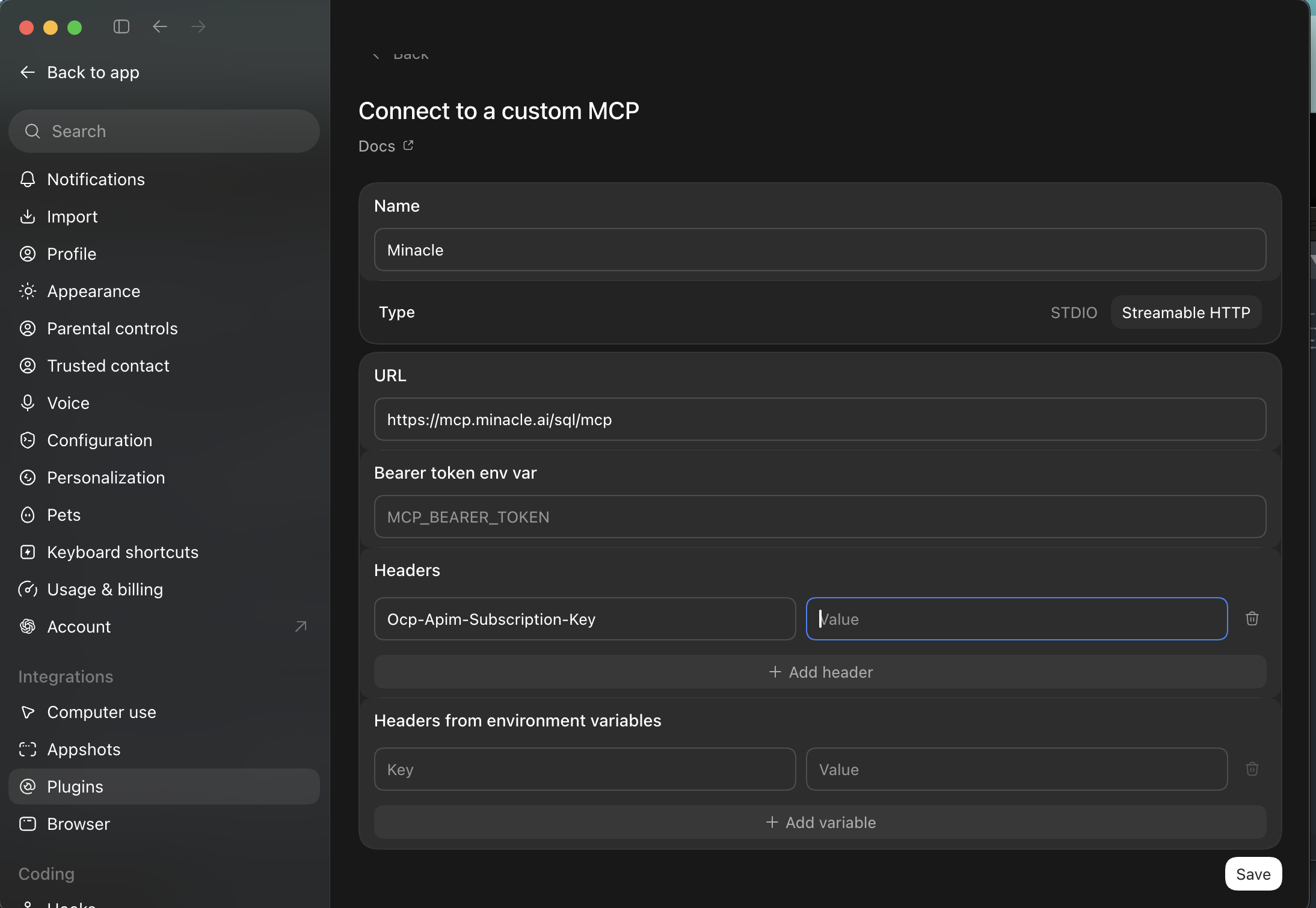
Use Streamable HTTP as the type, and add one header with your subscription key.
| Field | Value |
|---|---|
| Name | Minacle (or anything you'll recognize) |
| Type | Streamable HTTP |
| URL | https://mcp.minacle.ai/sql/mcp |
| Header name | Ocp-Apim-Subscription-Key |
| Header value | <your subscription key> |
Leave Bearer token env var blank — you don't need it. Click Save.
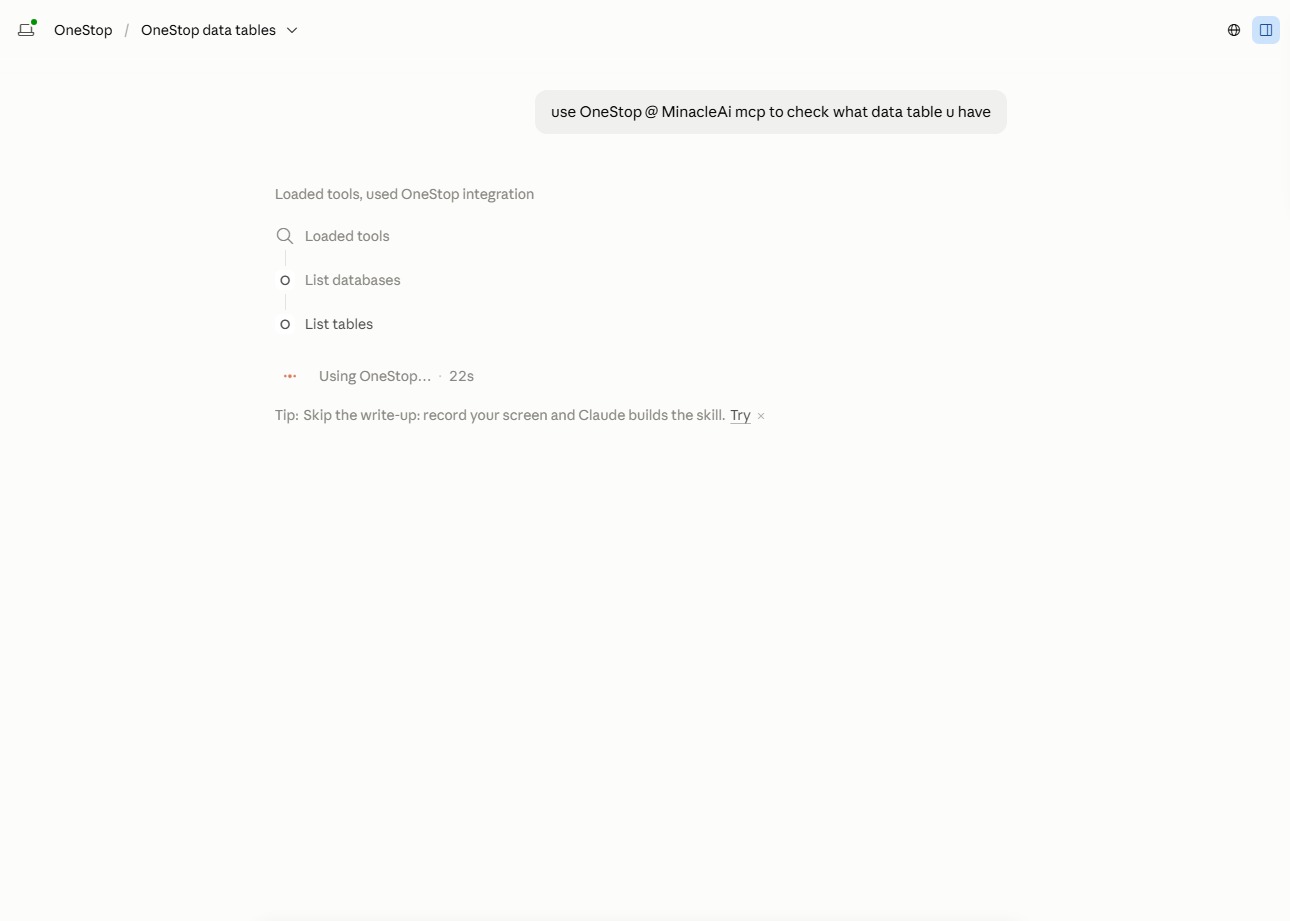
Start a new chat and ask something like: "Can you check if Minacle MCP is connected?" ChatGPT should call list_databases and confirm.
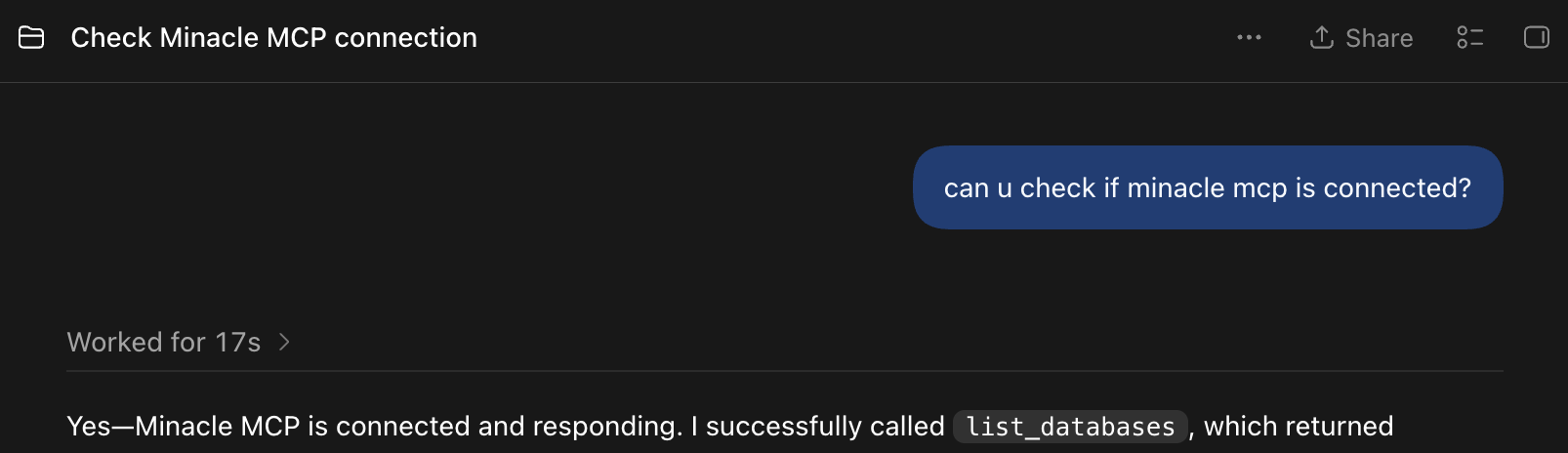
Claude (desktop or web) — Settings → Connectors → Add custom connector.
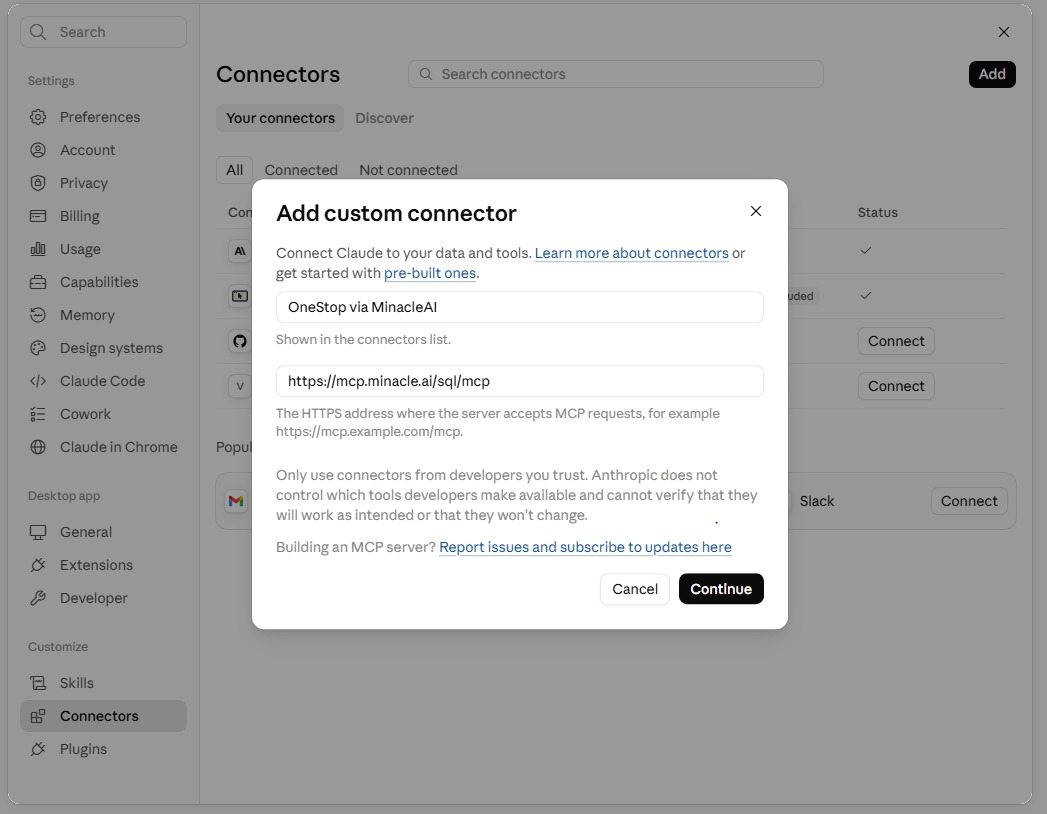
Open Claude's Settings, go to Connectors, and click Add to open "Add custom connector".
| Field | Value |
|---|---|
| Name | Minacle AI (or anything you'll recognize) |
| URL | https://mcp.minacle.ai/sql/mcp |
Click Continue.
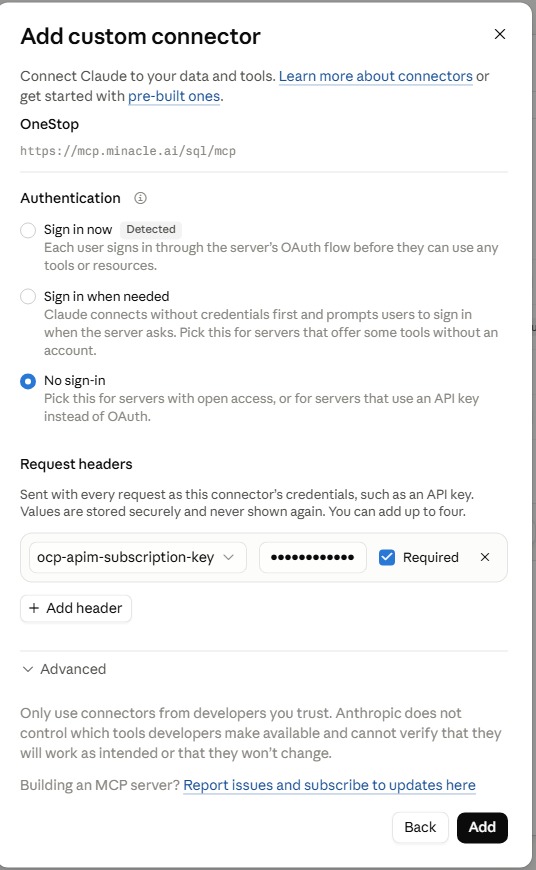
Under Authentication, select No sign-in (not "Sign in now" — this server uses a subscription key, not OAuth). Then add a request header:
| Field | Value |
|---|---|
| Header name | ocp-apim-subscription-key |
| Header value | <your subscription key> |
Tick Required, then click Add.
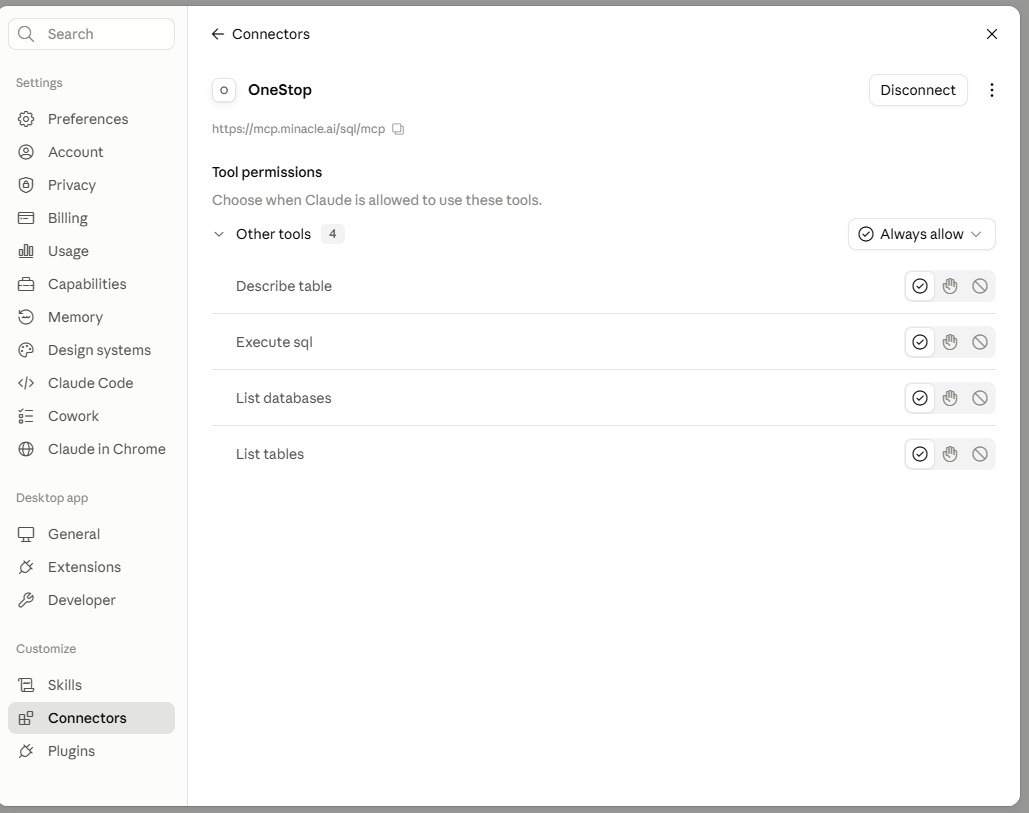
You'll see the connector listed with its available tools (Describe table, Execute SQL, List databases, List tables) — leave permissions on Always allow for a smooth experience.
In a chat, try: "Use [your connector name] to check what data tables you have."